> For the complete documentation index, see [llms.txt](https://docs.oxapay.com/llms.txt). Markdown versions of documentation pages are available by appending `.md` to page URLs; this page is available as [Markdown](https://docs.oxapay.com/welcome-to-oxapay/integrations/n8n-automation.md).
# N8N Automation
OxaPay for n8n enables you to automate your cryptocurrency payment workflows with flexibility and control. With this integration, you can connect OxaPay to your business tools, trigger workflows from payment events, create invoices, manage payouts, retrieve transaction data, and build advanced crypto payment automations with little or no code.
## What is n8n?
n8n is a workflow automation platform that combines visual automation with the flexibility of code. It allows teams to connect apps, APIs, databases, and internal systems using a visual workflow builder while still supporting custom logic when needed.
With n8n, users can build workflows using triggers, actions, conditions, webhooks, API requests, and data transformation tools. It is especially useful for technical teams that need more control over automation logic, deployment, data handling, and custom integrations.
## Key Features of n8n:
***
1. **Visual workflow builder:** Build workflows by connecting nodes on a visual canvas. This makes it easy to design, understand, and manage even complex automation flows.
2. **Low-code and code-friendly automation:** Create workflows without writing code, or add custom JavaScript, expressions, API calls, and advanced logic whenever your use case requires more flexibility.
3. **Webhook support:** Trigger workflows instantly when payment, payout, or other OxaPay events occur. This is useful for real-time notifications, order updates, reconciliation, and internal operations.
4. **Self-hosting option:** Run n8n on your own infrastructure when you need more control over privacy, security, deployment, and data storage.
5. **Extensive app ecosystem:** Connect OxaPay with hundreds of popular apps and services, including CRMs, databases, spreadsheets, messaging tools, e-commerce platforms, AI tools, and internal systems.
6. **Advanced workflow logic:** Use filters, conditions, loops, error handling, retries, schedules, and data transformations to build reliable payment operations.
7. **AI-ready automation:** Combine OxaPay payment data with AI tools to create smart workflows, generate reports, classify transactions, analyze customer behavior, or automate support processes.
## How to Configure the OxaPay Node in n8n?
1. Currently, the OxaPay node for n8n is available for self-hosted n8n instances only. To install and use the OxaPay node, make sure you are running n8n in a self-hosted environment. Then, go to **Settings > Community Nodes**, click **Install**, enter the official OxaPay package name, and complete the installation.
> **OxaPay package name:**
>
> `n8n-nodes-oxapay`
2. To start using the OxaPay node in n8n, first log in to your n8n instance and create a new workflow. You can do this from the dashboard by clicking the “Create Workflow” button.
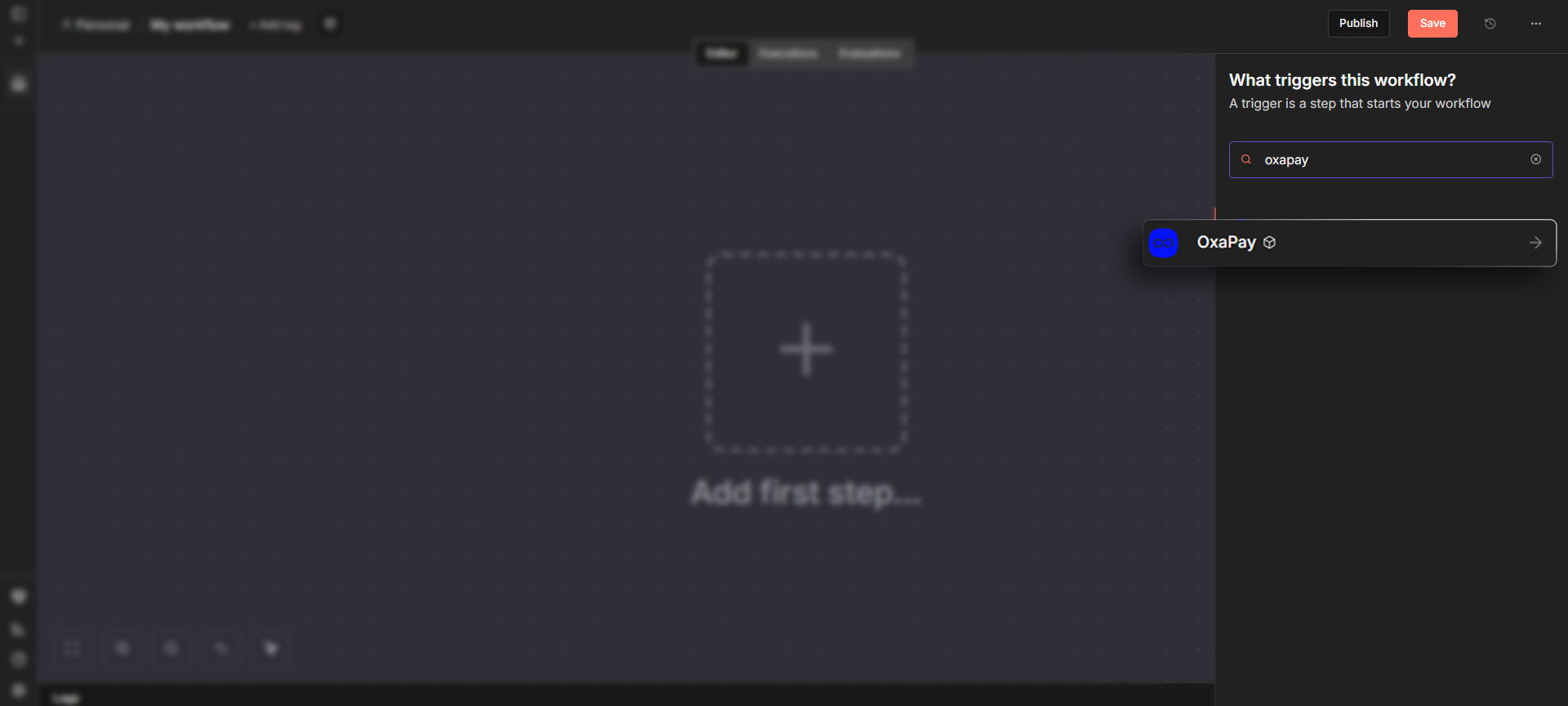
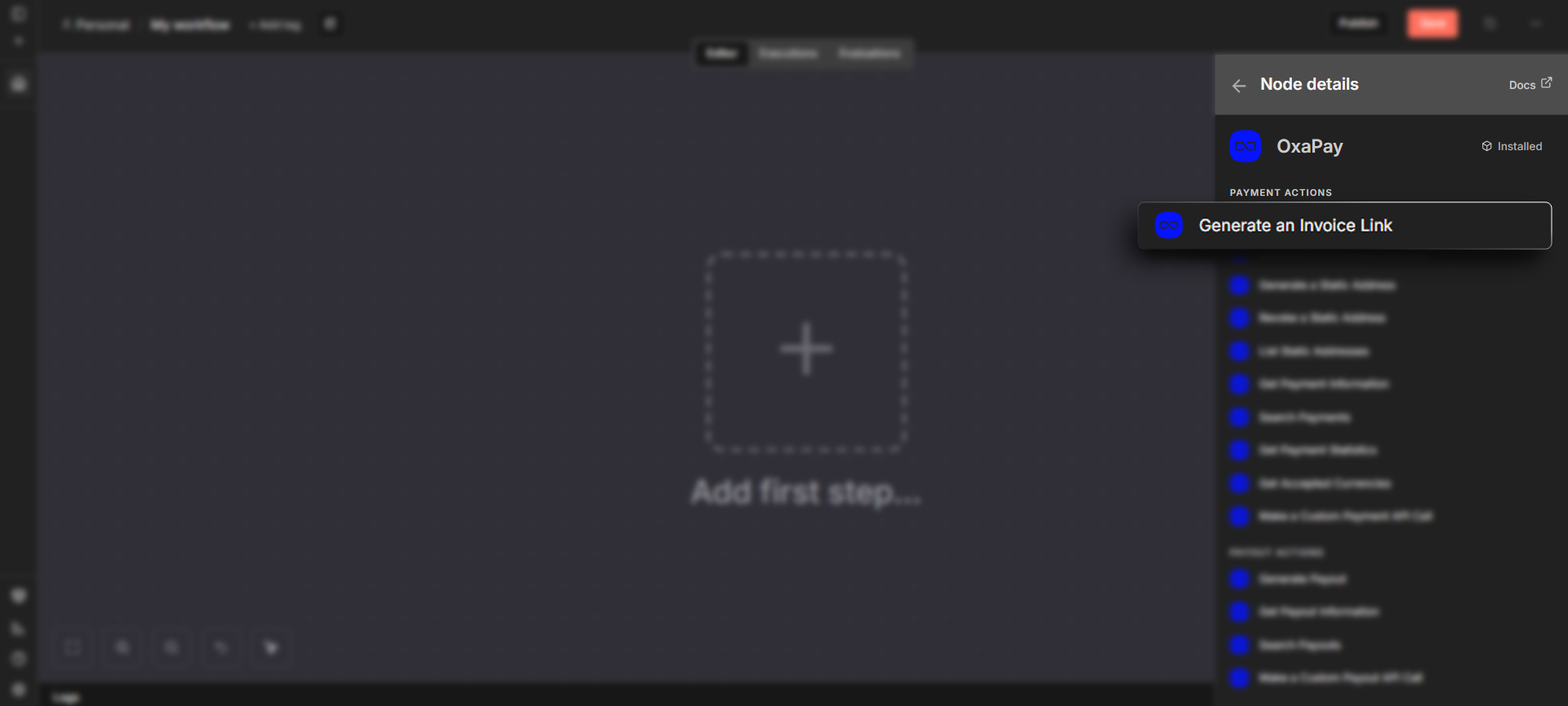
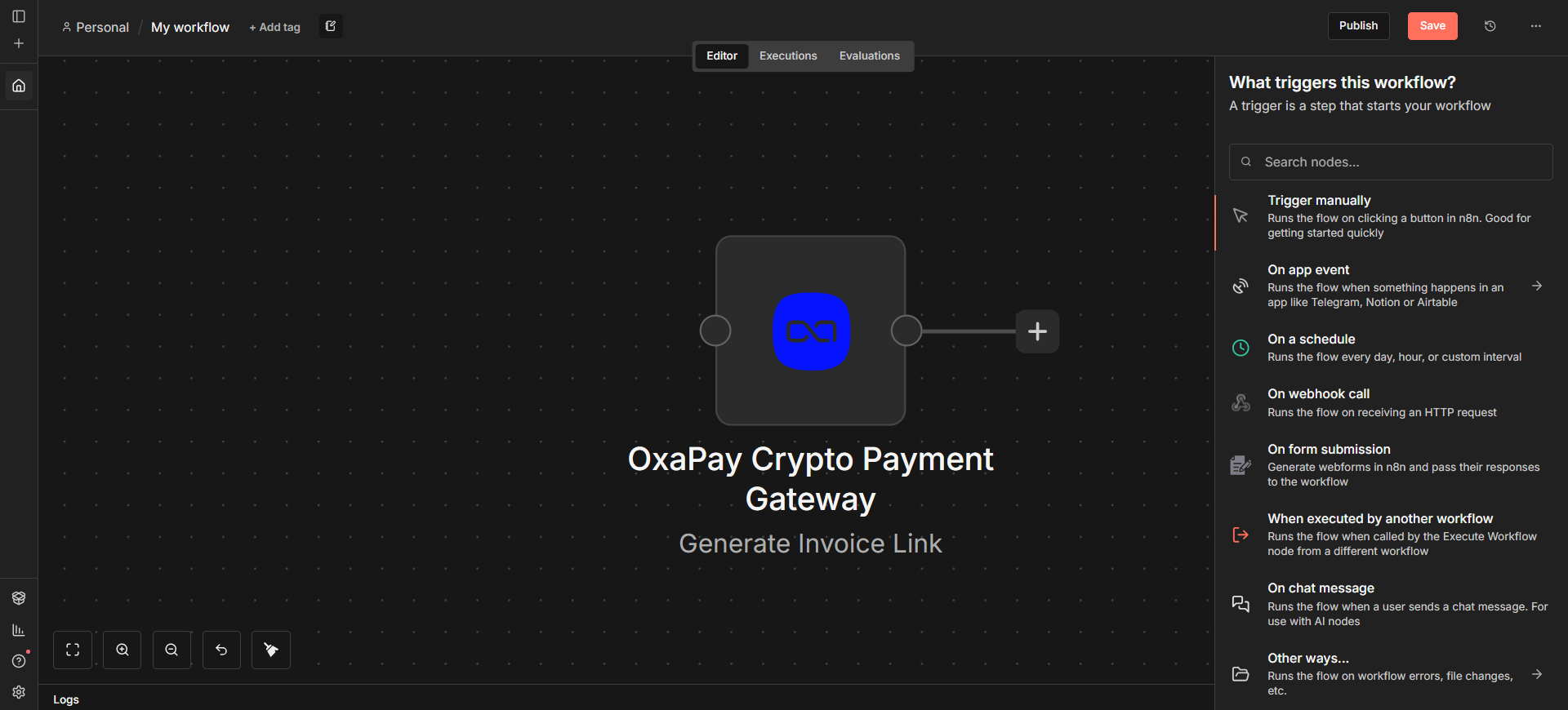
3. Once your workflow has been created, click the “+” button to add a new node. Search for **OxaPay** and select the OxaPay node or module you want to use.
4. Depending on your workflow, choose the required operation from the available OxaPay categories, such as Payment, Payout, Swap, Common, Webhook, or other supported actions.
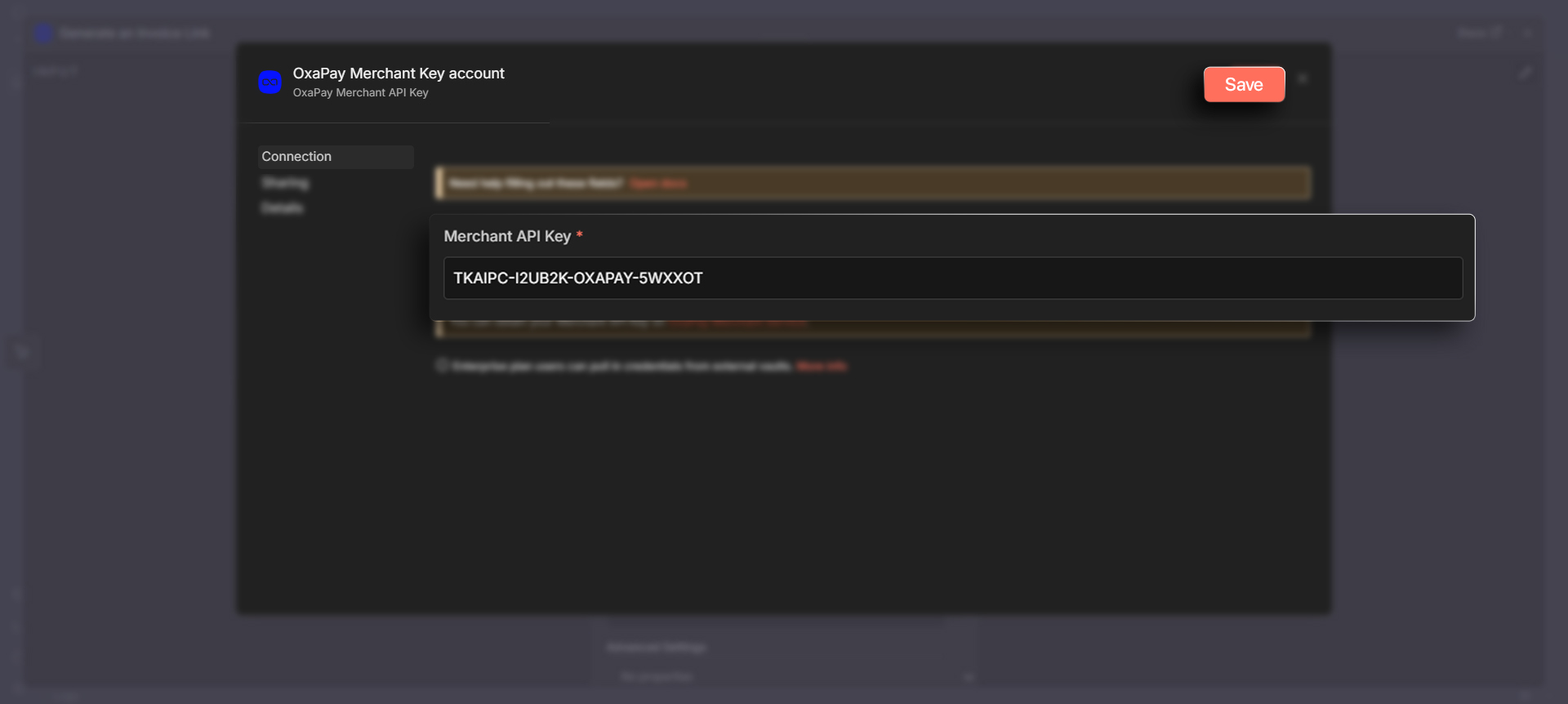
5. In some cases, you need to create credentials before using an OxaPay operation. To configure OxaPay credentials in n8n, click **+ Create new credential**, enter your OxaPay API key in the corresponding field, and click **Save** to complete the setup.
> You can follow the guides below to generate the necessary keys:
>
> * [How to Generate a Merchant API Key](https://docs.oxapay.com/api-reference/payment#to-process-payments-youll-need-a-merchant-api-key.-follow-these-steps-to-generate-it)
> * [How to Generate a Payout API Key](https://docs.oxapay.com/api-reference/payout#to-process-payouts-youll-need-a-payout-api-key.-follow-these-steps-to-generate-it)
> * [How to Generate a General API Key](https://docs.oxapay.com/api-reference/swap#to-process-swap-youll-need-a-general-api-key.-follow-these-steps-to-generate-it)
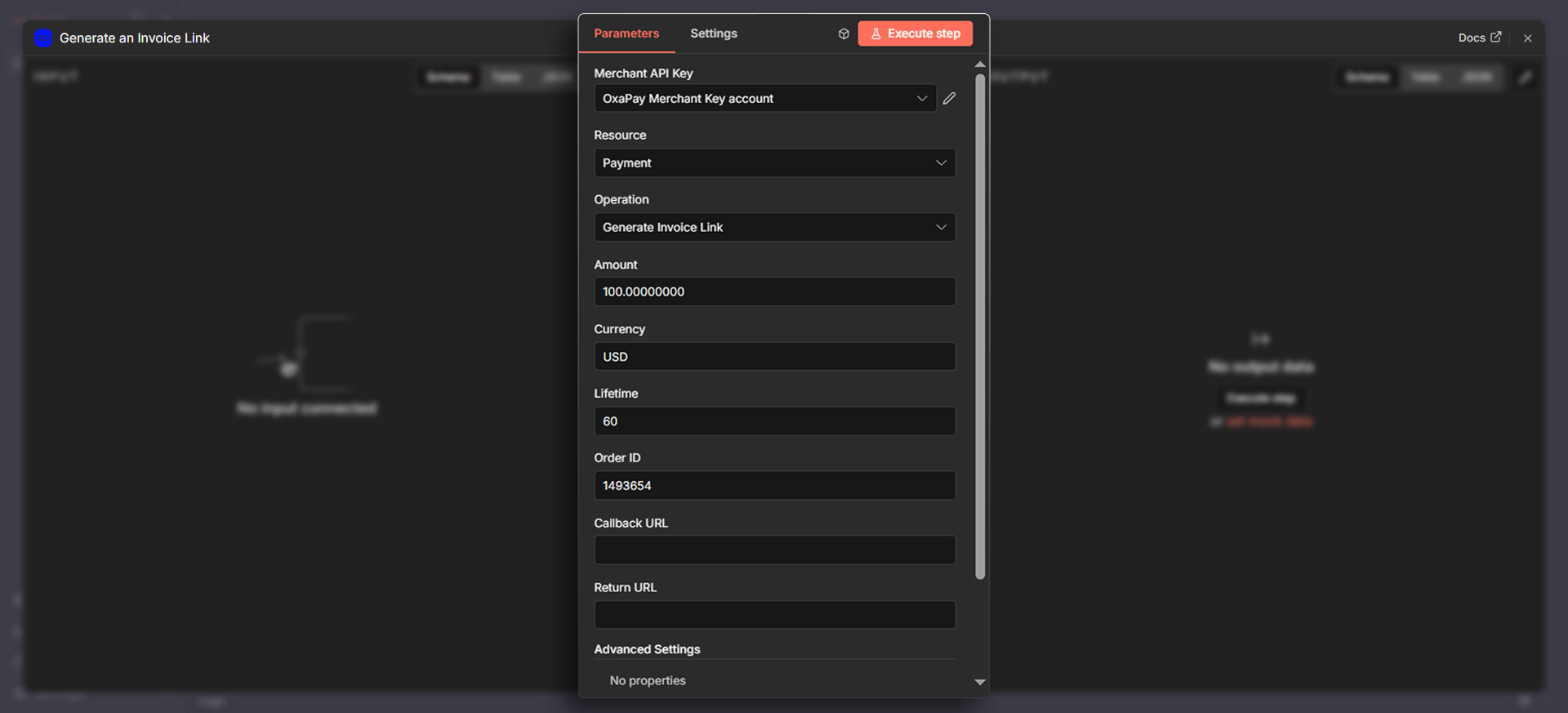
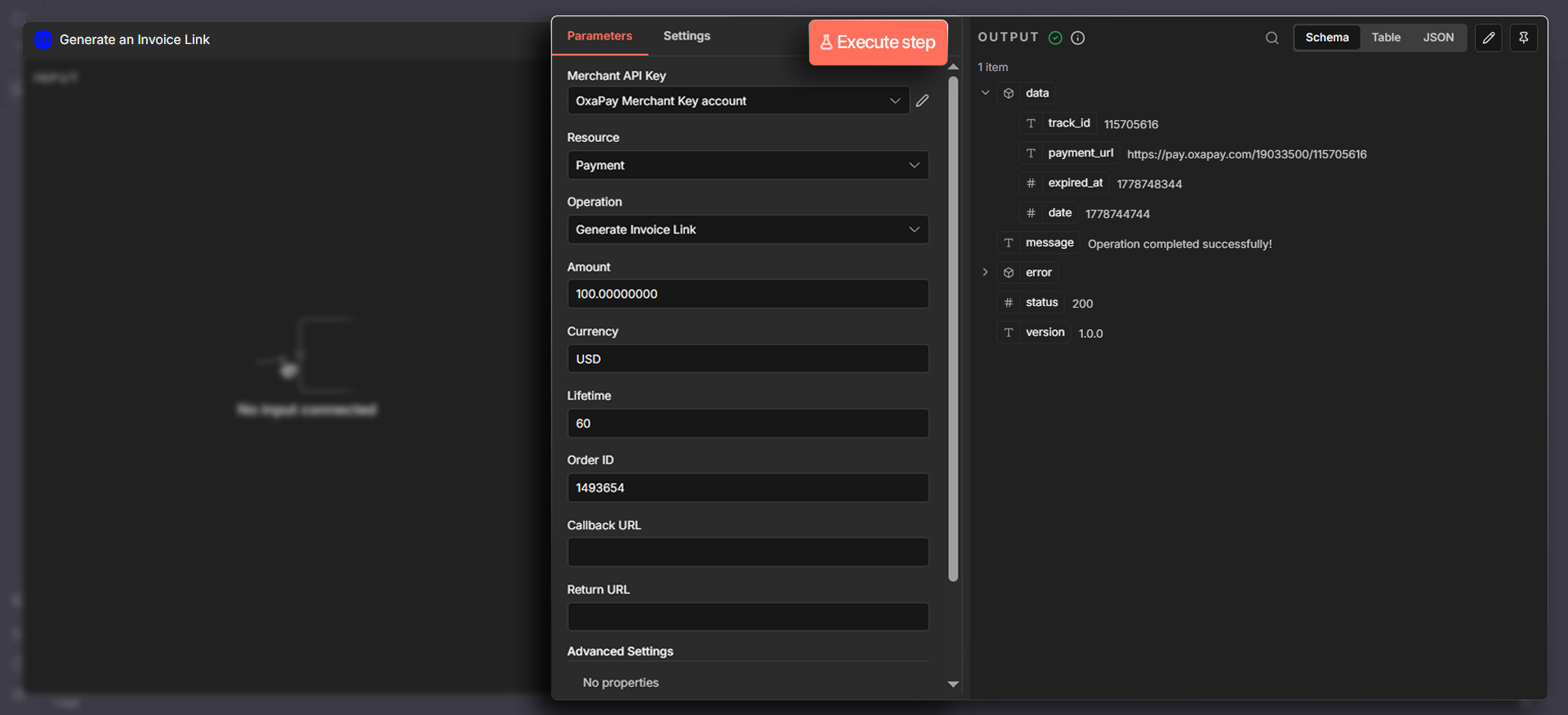
6. After adding your credentials, configure the required fields for the selected operation. Each OxaPay node is based on OxaPay APIs, so the available fields are designed to match the corresponding API parameters.
7. Click **Execute step** or run the workflow manually to make sure the OxaPay node is configured correctly. Review the output data returned by OxaPay and use it in the next steps of your workflow.
8. After confirming that the OxaPay step works correctly, connect it to other apps or services in your workflow. For example, you can send a Telegram message, update a Google Sheet, create a CRM record, send an email, update your database, or call another internal API.
## Using OxaPay Webhooks in n8n
OxaPay webhooks allow your n8n workflows to react to payment and payout events in real time. This is useful when you want to automatically update order statuses, notify your team, trigger fulfillment, record transactions, or synchronize payment data with another system.
To use OxaPay webhooks in n8n:
1. Create a new workflow in n8n.
2. Add an OxaPay webhook trigger or a standard Webhook node.
3. Copy the webhook URL generated by n8n.
4. Add this URL to the callback URL field in your OxaPay API request.
5. Complete a test payment or payout event.
6. Check the received webhook payload in n8n.
7. Add the next steps of your workflow, such as sending a notification, updating an order, or storing the transaction.
## Example OxaPay n8n Workflows
Here are some common automation examples you can build with OxaPay and n8n:
1. **Payment notification workflow:** When a payment is completed, send an instant notification to Telegram, Discord, Slack, or email.
2. **Order update workflow:** Receive an OxaPay payment webhook and automatically update the order status in your e-commerce platform or database.
3. **Invoice creation workflow:** Create an OxaPay invoice from a form submission, CRM deal, spreadsheet row, or internal system request.
4. **Transaction reporting workflow:** Retrieve payment data from OxaPay and sync it with Google Sheets, Airtable, Notion, or your internal dashboard.
5. **Payout automation workflow:** Generate payout requests based on approved records in your database, spreadsheet, or back-office system.
6. **Balance monitoring workflow:** Check your OxaPay account balances on a schedule and notify your finance team when balances reach a specific threshold.
7. **Swap automation workflow:** Create swap requests or retrieve swap rates as part of your treasury, accounting, or operational workflow.
8. **AI-powered payment analysis:** Send OxaPay transaction data to an AI model to summarize activity, classify customers, detect anomalies, or generate reports.
## Automate your OxaPay workflows using n8n
Once you have configured OxaPay in n8n, you can start building powerful automation workflows for crypto payments, payouts, swaps, reporting, notifications, and internal operations.
n8n gives you the flexibility to connect OxaPay with external apps, internal APIs, databases, AI tools, and custom business systems. You can start with a simple workflow, test each step carefully, and then expand it into a complete automated payment operation.
Before going live, make sure to test your workflows, validate your API keys, review webhook behavior, and confirm that your automation handles errors correctly. If you encounter any issues or have questions, please contact OxaPay support.
%20.jpg?alt=media&token=ea4114eb-f7ce-45b0-88e1-d7ff55c2a45b)
%20.jpg?alt=media&token=8b3faf29-6a65-4ade-b90b-5d3812343f92)